

Help
Common questions, and how to set up a computer. Still stuck? Email support. It comes to a real person, not a ticket queue.
Common questions
Trial, pricing & billing
How does the trial work? +
You get the full product for 14 days: every feature, at the Firm plan's limits (up to 250 devices and 10 locations). You save a card on Stripe's checkout; it is not charged. The 14 days start when you add your first computer. We email you three days before they end. When they end, scanning pauses and you choose a plan (Office, Practice or Firm) and monthly or yearly billing; your card is charged only then. If you never choose one, the account stays paused for 6 months, then it is closed and its scan data deleted. Asking for a demo sets up the same trial.
Do I need a credit card to start? +
Yes. A card is required to start the 14-day trial. It is saved, never charged automatically: you are charged only when you choose a plan, monthly or annual, when the trial ends.
Can I add more computers or sites? +
Yes. On any plan, an add-on pack adds 10 computers and 3 sites for $55 a month ($550 a year with yearly billing). Add as many packs as you need when you choose your plan, or change the number later from Billing.
What does it cost? +
Three plans, every one with every detection feature: Office (1 location, up to 10 devices) from $499/month, then Practice and Firm for larger offices. Every plan can be billed monthly or yearly; yearly is 2 months free (you pay for 10). See the pricing page.
How do I cancel? +
Cancel anytime from your account billing page or by emailing support@cmtechsoftware.io. Your scan data is kept for 90 days in case you come back, then deleted, so export anything you want to keep first. We email you when the subscription ends, each month after that, and once more a week before the data is deleted. Billing records are kept 10 years.
How am I billed? +
Payments run securely through Stripe. You can pay by card monthly or annually. We never store your raw card number.
Is it right for us?
Our IT company already handles this. +
Ask them when the last scan of every computer for Social Security numbers, card numbers and ID numbers ran, and what it found. MyVaultMate runs on its own, as often as hourly, and you see the results yourself. Your IT company can have a login too and work the findings list with you.
We have Microsoft 365. Doesn't that cover it? +
Check what your Microsoft 365 plan covers, and whether it looks at files saved on individual computers, mapped drives and USB disks. MyVaultMate looks at those: the front-desk PC, the scanner folder, the USB drive when it is plugged in.
My payment processor already has us run a PCI scan. +
A PCI scan is about card data, for your processor. Client records are a different exposure. Ask whether yours covers them and how often it runs. MyVaultMate looks for Social Security numbers, card numbers and ID numbers on each computer, on a schedule you set.
Is it worth the price? +
Office is $499 a month, about $16 a day, and the 14-day trial never charges automatically (a card is required; you choose a plan when it ends), so you see what it finds before you decide.
MyVaultMate
What does MyVaultMate do? +
A small program you run on each computer scans local drives and synced cloud folders — OneDrive, Google Drive, external disks — for unprotected PII (SSNs, payment cards, health information) and ranks findings by risk. See the product details.
Does it store my sensitive data? +
No. It records the type, location, and a redacted sample of each finding — never the raw value — so the report doesn't copy your sensitive data. File names can still show client names; you can keep them off the dashboard (see below).
Who is it for? +
Small offices that keep client data on their computers: law firms and accounting and bookkeeping firms, plus insurance agencies and other firms that do the same.
How many devices, and how often does it scan? +
Every plan includes a number of devices: Office up to 10, Practice up to 30, Firm up to 250. Scans run on the schedule you set, as often as hourly (the default for new accounts). You can limit them to certain hours and days, for example overnight, and give different computers different schedules.
How do I add a computer? +
In your dashboard, open Add a computer. Download the program for that system (one file for Windows, one for Linux), run it, and sign in with your account. It starts watching that computer by itself, and the computer appears under Computers. The steps, with pictures, are under Set up a computer below.
What does the findings report include? +
Every report opens with a page you can send to your insurance broker, on every plan: the three average risk scores, counts by kind of data, the files it could not read and what was done with them, the trend, and the controls in place (two-factor sign-in, disk encryption, scan schedules), with no file names, paths, samples or people's names. The pages after it are internal, for fixing files: location, data type, severity and a redacted sample for every finding, also as CSV or Excel. The Insurance Summary adds the 30 or 90-day history.
How will I know if something new shows up? +
Each scan is compared with the previous one. The dashboard marks new findings and shows how many are new since the last scan, and an email goes out when a scan finds something new (or when findings are fixed). The email carries counts only, never file names. It is as fresh as your scan schedule, as often as hourly, not real time. Admins choose who is emailed and when under Scan settings → Scan emails.
Who can manage our organization? +
Each organization can have multiple administrators (manage users, devices, billing, scan settings) and members (view results). Any member can be flagged to receive billing email.
Account & security
How is my data protected? +
It is encrypted in transit (the program only talks to the dashboard over HTTPS, TLS 1.2 or newer, and checks the server's certificate) and stored encrypted, two-factor sign-in is required for everyone, and payments go through Stripe, so we never see your card number. The files themselves never leave your computers. See Security.
Who runs CM Tech Software? +
A US, veteran-owned company in Reno-Sparks, NV that builds, runs and supports MyVaultMate. When you contact support you reach the person who wrote the software.
Set up a computer
Download MyVaultMate — Windows and Linux
Version 2.6.0. One file per system, nothing to install. Run it and sign in with your account's email, password and authenticator code; it does nothing until then. A new account runs as a 14-day trial of the full product (the Firm plan's limits: up to 250 devices), and the dashboard checks devices and locations against the plan. No account yet? Start a 14-day trial first (a card is required and never charged automatically; the 14 days start when you add this computer).
Windows
Windows 10 or 11, 64-bit
-
Program (.exe) · about 41.7 MB
One file. Run it and sign in; it starts watching by itself.
Download for WindowsSHA-256
e9f4e343dde38df974ab4b3430014904c2881ec489f13daf046c1464db719f71
Linux
x86-64
-
Program · about 36.1 MB
One file. chmod +x myvaultmate, then run it.
Download for LinuxSHA-256
75080c640c0ff62b09fd2e8b167e953a060bfd176081b0899e6f813fc310a3c9
The Windows file isn’t code-signed yet, so SmartScreen may warn on first run (More info → Run anyway); compare the SHA-256 above with Get-FileHash to confirm it. macOS and Windows Server aren’t supported.
What you will see
Windows: a window
A page for each job. Closing the window does not stop watching.


Linux: a terminal menu and command-line flags
The same features as numbered choices; each is also a flag for scripts. No desktop needed.


--live)
--files)
More screens: first run, a plan notice, quarantine, schedule, folders, settings
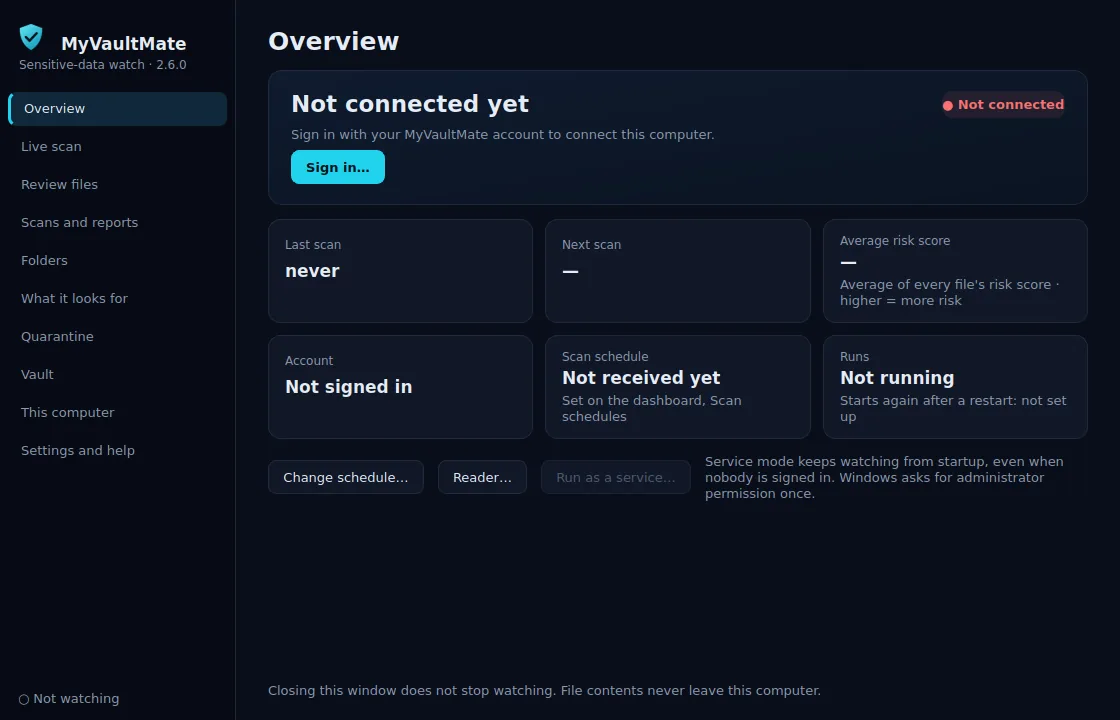
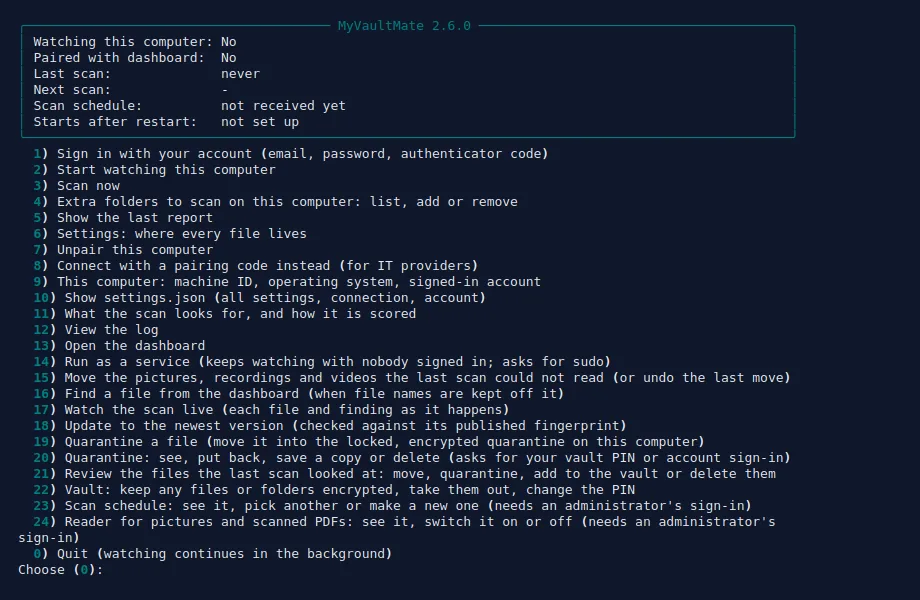
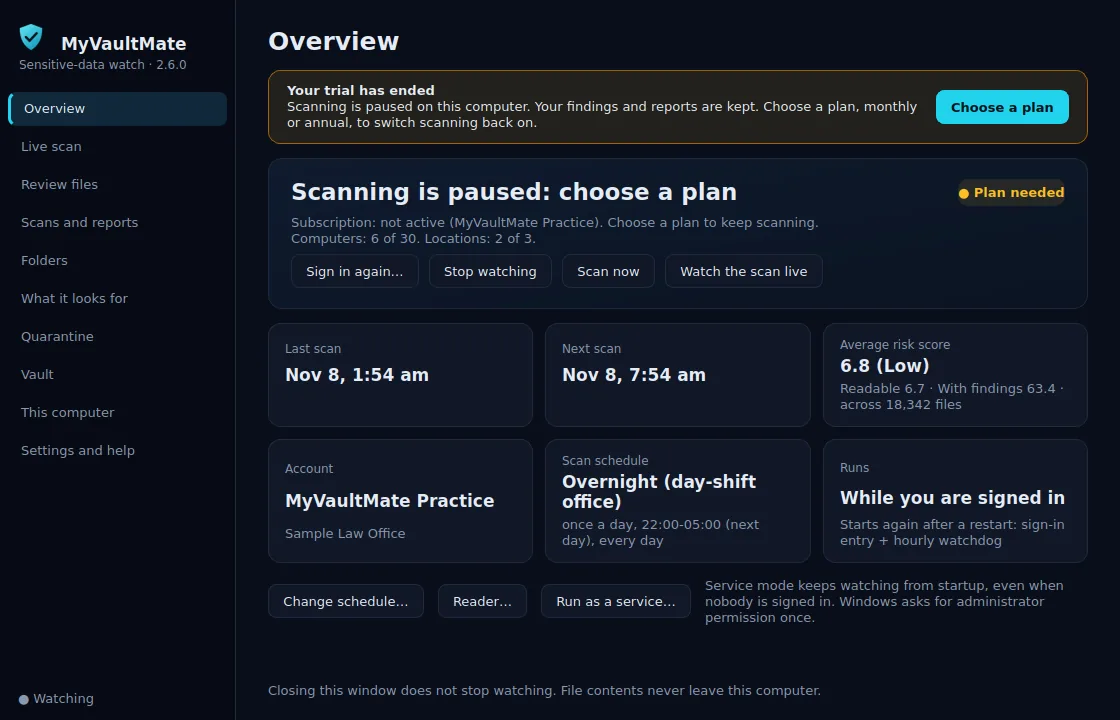
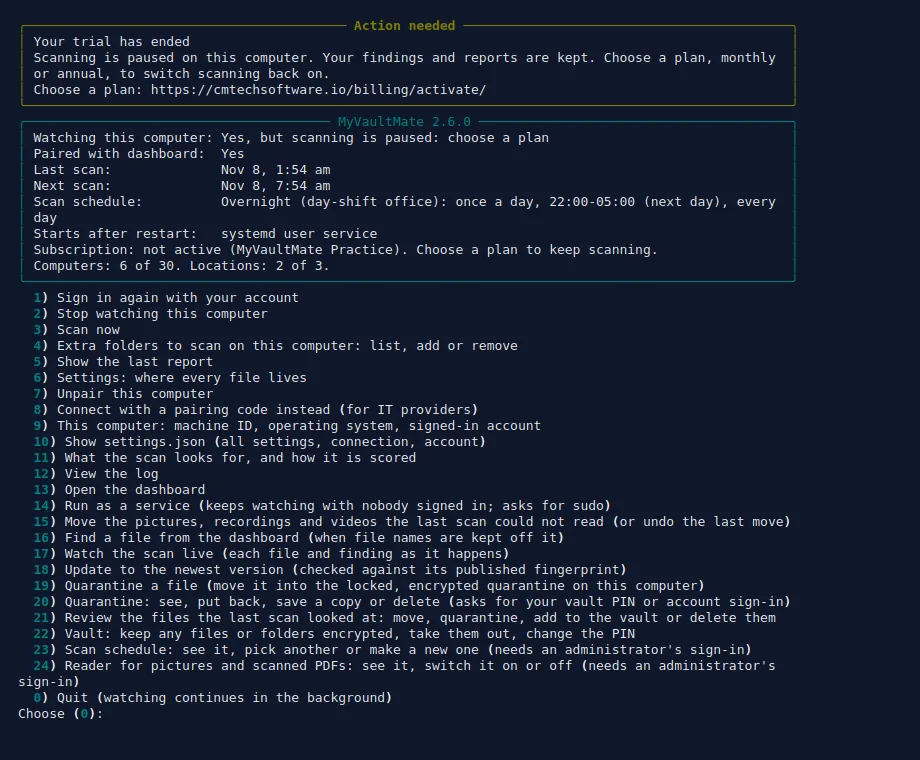
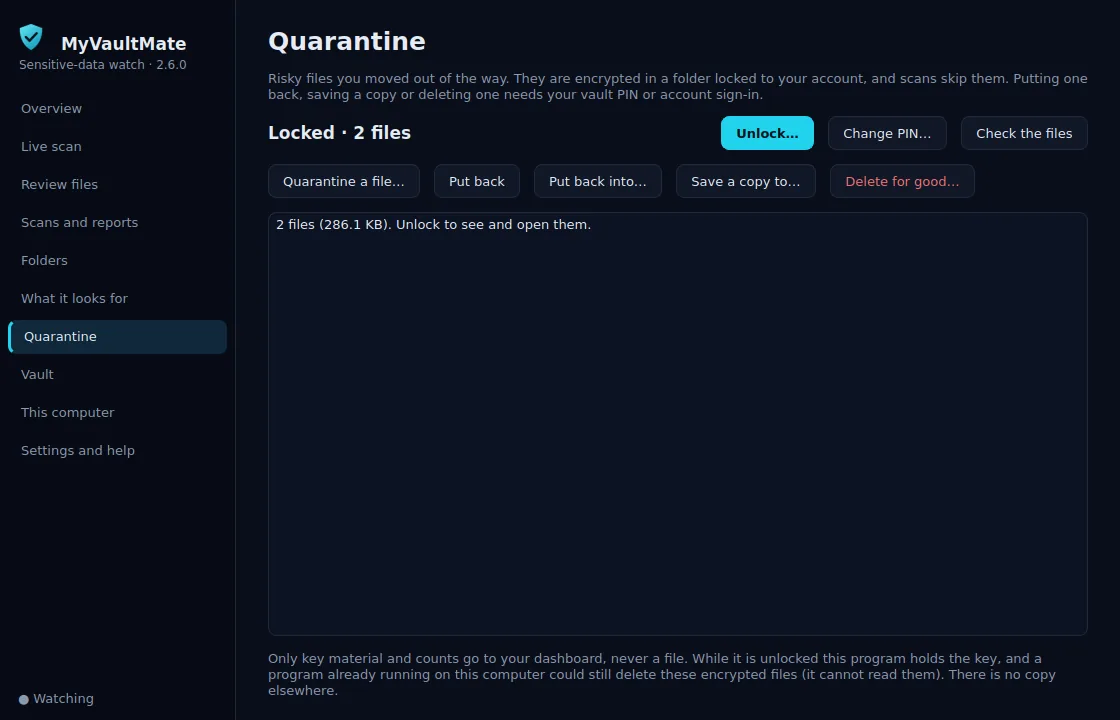
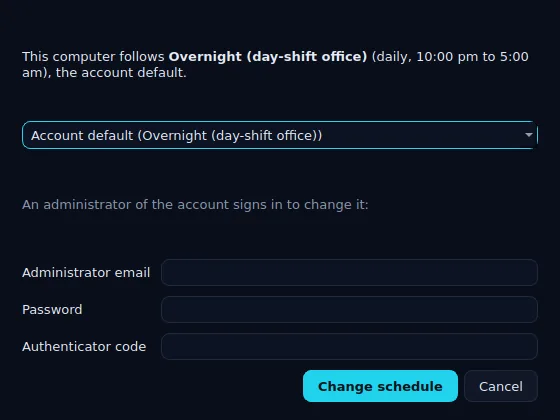
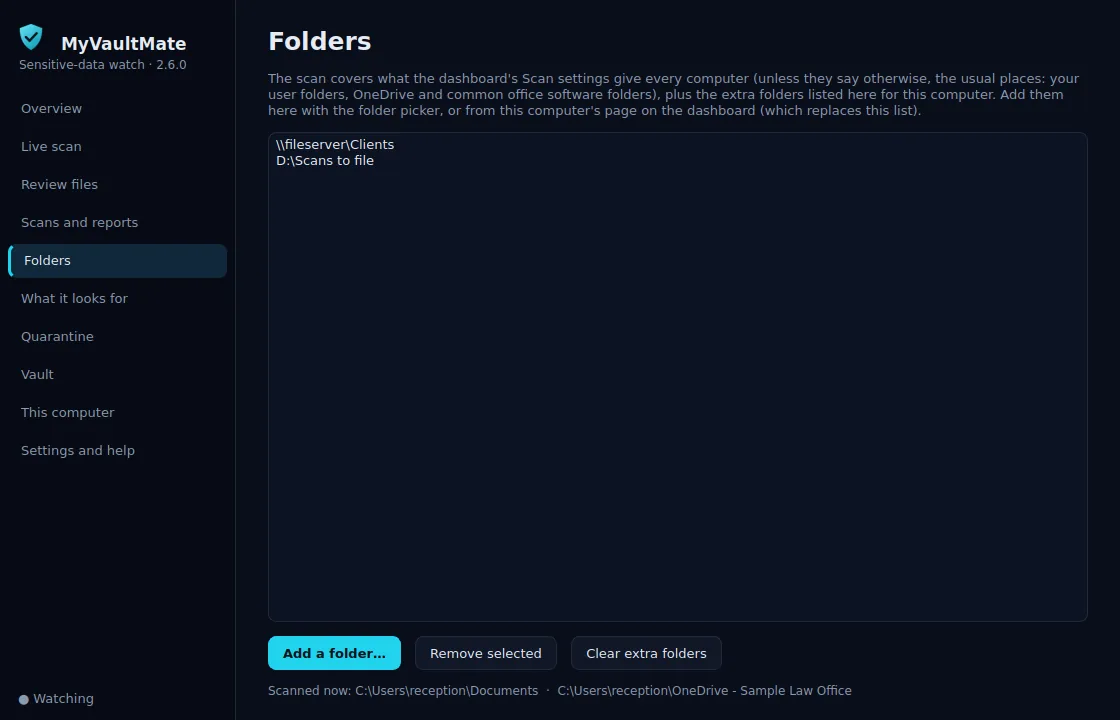
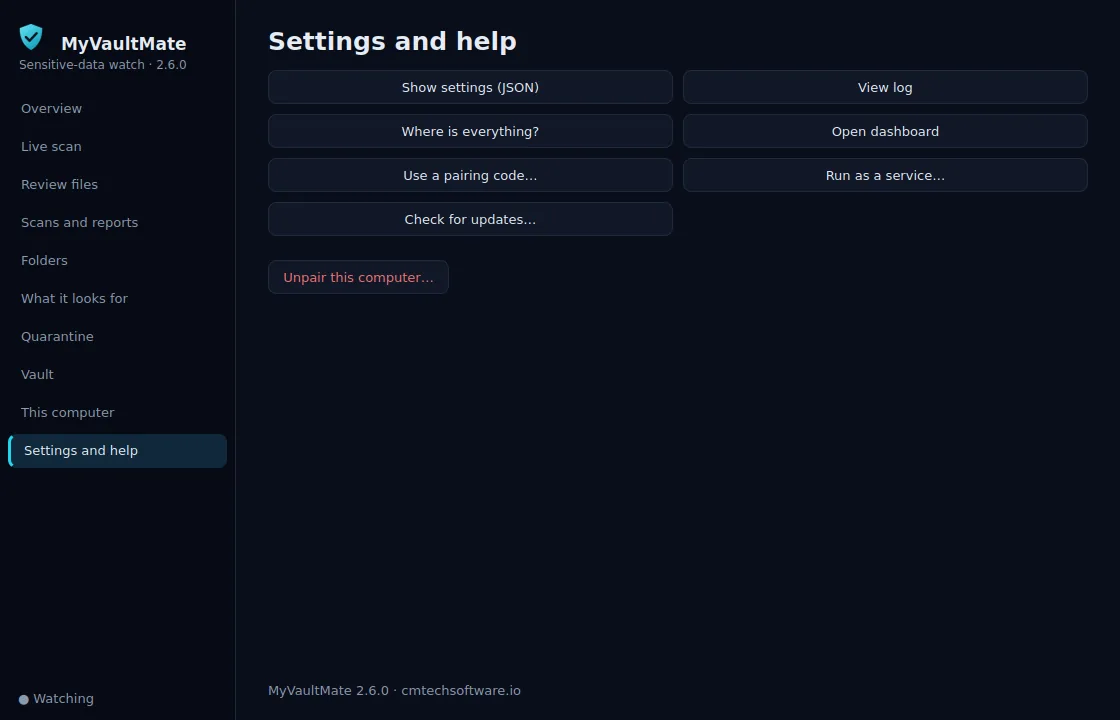
These images are drawn by the program itself, with sample data.
Download
What do I download, and what does it run on? +
One file per system, from the download buttons above or Add a computer in your dashboard: MyVaultMate.exe for Windows 10 and 11 (64-bit), or myvaultmate for Linux (x86-64, any current distribution). Nothing else needs to be installed first, and nothing is installed by the download itself. Anyone can download it; it does nothing until it is signed in to an account, and that account's subscription or trial decides what it may do. No account yet? Start a trial first.
Windows shows a warning when I run it. +
The Windows file is not code-signed yet, so SmartScreen may say it doesn't recognise the publisher the first time. Choose More info, then Run anyway. You can compare the file's SHA-256 (shown on Add a computer) with Get-FileHash MyVaultMate.exe in PowerShell, or sha256sum myvaultmate on Linux, to confirm it is the file we published.
Run it
How do I start it? +
Windows: double-click MyVaultMate.exe. A window opens. Linux: in a terminal, chmod +x myvaultmate && ./myvaultmate. A menu appears in the terminal. Every menu item is also a command-line flag (see I'm an IT provider. Can I script it? below), so an IT provider can do everything without the screen.
Where does it put its files? +
Everything it creates is in one place, and it never writes next to the file you downloaded. Run MyVaultMate.exe --where (or ./myvaultmate --where) to print every path, or open Where is everything? in the window / Settings in the menu. On Windows that is %LOCALAPPDATA%\MyVaultMate\; on Linux the program is ~/.local/bin/myvaultmate, settings are in ~/.config/myvaultmate/ and the manifest, logs and reports are in ~/.local/share/myvaultmate/. Set MYVAULTMATE_HOME or pass --home PATH to keep the whole tree somewhere else.
Sign in
How does the program know which account it belongs to? +
You sign in from it with the same email, password and authenticator code you use on the website. In the window choose Sign in; in the Linux menu choose option 1; from a script run --login EMAIL --otp CODE (the password is asked for, or read from MYVAULTMATE_PASSWORD; it is never typed on the command line). The password is used once and never saved: the computer keeps only its own device token, which you can cancel any time with Unpair on its page under Computers. Signing in the same computer again reuses its entry under Computers.
Does a trial account work in the program? +
Yes. The download does nothing until it is signed in with an account. A new account runs as a 14-day trial of the full product, with every feature, at the Firm plan's limits (up to 250 devices and 10 locations). The program shows the account and what it allows (for example “Trial: Firm, 9 days left. Computers: 3 of 250. Locations: 1 of 10.”). When you then choose a smaller plan, the computers beyond its limit stop scanning, and say why, until you add a pack or move up. If you cancel during the trial, the program stops scanning when the trial ends. No account yet? Start a trial on the website first.
It says two-factor sign-in is not set up. +
Two-factor sign-in is required for every account on the website and in the programs. Sign in on the website once, open Security, and set up an authenticator app (any standard one works). Keep the backup codes it shows: each works once, here and on the website, if you lose your phone.
Can an IT provider add computers without my password? +
Yes. An account owner or administrator opens Add a computer and reads out the 6-character pairing code (Use a pairing code in the window, option 8 in the Linux menu, --pair CODE in a script). The code works once and expires after 15 minutes; New code on the dashboard cancels the old one.
How do I know it worked? +
The window or menu shows your plan and the computer appears under Computers; if you used a pairing code, the Add a computer page also shows “computer name connected” within seconds.
Keep it watching
What does Start watching this computer do? +
You rarely need it: signing in starts watching, and opening the program starts it again unless someone chose Stop watching. It copies the program to its fixed place, starts a quiet background process, and makes it start again after a restart. That background process checks in with your dashboard about every 20 seconds, scans only inside the schedule your administrator set, and sends the findings (locations, types and masked samples, never file contents). The window or menu is just a remote control for it, so you can close the window and it keeps running and scanning on your schedule.
How does it come back after a reboot? +
Windows: a sign-in entry plus an hourly scheduled task named MyVaultMate Watchdog that starts it again if it stopped (no administrator needed). Linux: a systemd user service that restarts if it stops. Without user-systemd it uses a desktop autostart entry, and failing that cron @reboot. A second copy never runs: it exits at once if one is already watching.
What does it send after each scan, and how long is it kept? +
The findings (locations, types, severity and masked samples, never file contents), the computer's machine ID, name, operating system and the email of the account that signed it in, and the scan's report files. The dashboard builds a final PDF report (laid out like the sample report) and a raw-data CSV (one row per file: where it is, how much of it was read, what was found and where in the file, and its risk score) for every scan of every computer, and keeps them with that computer on its page under Computers along with the HTML and JSON reports the computer sends. The computer keeps a copy of the same files in its own reports folder. Only the newest 25 scans of each computer are kept, on the computer and on the dashboard; older ones are deleted with their reports, and the computer also deletes its own copies after 30 days unless you change that in Scan settings. The dashboard keeps only each scan's counts (no file details) for 13 months, for the trend in Summary reports.
Can an administrator make it scan right now? +
Yes. Scan now on the computer's page under Computers asks it to scan; it picks the request up at its next check-in (within a minute) and the dashboard shows the result. The same page can stop it or unpair it.
Does it tell me when a new version is out? +
Yes. The window shows the new version with an Update now button (Linux: menu option 18, or --update in a script). An administrator can also update a computer from the dashboard: Update now on its page under Computers, or Update all computers that are behind on the Computers page. The program finishes any scan that is running, downloads the new version over the encrypted connection, checks it against its published SHA-256 fingerprint, swaps it in and starts again; settings, sign-in and scan history are kept. A computer that is switched off updates when it next starts. If anything goes wrong it keeps the version it had and the dashboard says why. Nothing updates until someone chooses to. Computers on 2.5.0 or older need one update by hand before the dashboard can update them.
Do Windows and Linux have the same features? +
Yes, the same features in the way each system works best. On Windows it is a window with a page for each part. On Linux it is a numbered menu in the terminal, and every action is also a command-line flag for scripts; no desktop is needed.
Can I watch a scan as it happens? +
Yes. The window's Live scan page (Linux: menu option 17, or --live in a script) shows each folder and file as it is checked, each finding as it is found (masked), the counts and how far it has got. The dashboard shows the same progress for every computer while it scans, updated every few seconds.
What about pictures, recordings and files it cannot read? +
MyVaultMate reads text files and other files it can open. It does not read pictures, videos or recordings: they're listed with a risk score of 70, and you choose what to do with them. They are listed as Not scanned, never as clean, and count at 70 in the all-files average risk score. Each computer's page and each scan show how many there are and how much space they take, split into images, audio, video, documents and other files, with the reasons (for example a password-protected file or a type it does not read yet), and Download the list (JSON) gives every such file with its folder, type, size and date. Version 2.3.6 and newer also save the same list on the computer, as not-scanned-<date>.json in its reports folder.
Can I move, quarantine or delete the files it finds? +
Yes, at the computer or from the dashboard. The program's Review files page (Linux: menu option 21, or --files) lists the files the last scan looked at, folder by folder, riskiest first. Choose files, or a folder for every file listed in it, and Move to… another folder (Undo the last move puts them back), Quarantine them, put them in the Vault, or Delete for good. Deleting asks you to confirm (type DELETE for more than one file), overwrites each file first and skips the Recycle Bin, so it cannot be undone. On SSDs, in OneDrive or Dropbox (version history) and in backups an older copy may still exist. Every action is logged on that computer. Files it could not read can also be marked Ignore: they keep their risk score of 70 but are no longer listed as to-dos. From the dashboard, an administrator can ask a computer to quarantine, move or delete for good (typing DELETE first) files its own recent scans found, or mark them ignored (see below); the dashboard never opens a file.
How do the three average risk scores work? +
Every file gets a risk score from 0 to 100: a file with findings from what was found and where it sits, a readable file with nothing found a small score for where it sits, and a file it cannot read 70. Each computer and the office get three averages, each the total of the scores divided by the number of files: all files, readable files and files with findings. Example: 18 readable files with nothing found (5 each), one Social Security number in Documents (80), one on the Desktop (91) and 5 pictures (70 each) give 24.4 for all 25 files, 13.1 for the 20 readable files and 85.5 for the 2 files with findings. A scan from a program older than 2.6.0 shows rescan to see this score for the first two. How the score works has the details.
Can I move, delete or ignore files on a computer from the dashboard? +
Yes. On the computer's page, tick files under Files by risk and choose Quarantine, Move to a folder, Delete for good (type DELETE first) or Ignore. Only account administrators (or members allowed to manage the account) can, and only for files the computer's own recent scans found; the computer checks each one again and refuses system and program folders. It needs MyVaultMate 2.6.0 or newer on the computer: an older one shows update the program first. Scan settings can also quarantine, move or ignore the files it could not read after every scan, for all computers or one; that never deletes anything.
Can I quarantine files on a computer from the dashboard? +
Yes. On the computer's page, tick files under Files by risk and choose Quarantine on that computer. Only account administrators (or members allowed to manage the account) can. The computer does it at its next check-in, usually within a minute, and the result shows under Remote requests, file by file. It only takes files its own recent scans found (a path or name tag it did not report is refused), it never deletes anything, and nothing can be put back from the dashboard: that needs the vault PIN or a sign-in at the computer. The program shows who asked. The files go into the quarantine of the account the program runs as; when it runs as a service, that is the service's own quarantine (Windows: C:\ProgramData\MyVaultMate\Quarantine, Linux: /var/lib/myvaultmate/quarantine), which an administrator opens by running the program as administrator (Linux: with sudo) with --service-mode.
Can I choose the folders scanned on one computer? +
Yes. Every computer scans what Scan settings gives it (the usual folders, or your own list). On a computer's page, Folders to scan on this computer adds more for that computer only: tick folders it reported or type full paths, one per line. Saving replaces that computer's extra folders, including any added on the computer itself. In the program they are on the Folders page (with a folder picker), Linux menu option 4, or --add-folder / --remove-folder.
Can I change a computer's scan schedule from the program? +
Yes: Change schedule… on the program's Overview (Linux: menu option 23, or --schedules and --set-schedule) shows the schedule the computer follows and your named schedules, and lets you pick one or make a new one. A schedule is account policy, so an administrator signs in there with email, password and authenticator code. The dashboard shows the change at once, and schedules can still be made and given to one or many computers on the dashboard's Scan schedules page.
What are the Quarantine and the Vault? +
Two encrypted folders on each computer. Quarantine is for risky files a scan found; the Vault is for any files or folders you want kept encrypted (Linux: menu options 19, 20 and 22). Adding a file encrypts it, hides its name and removes the original; it needs no PIN and works offline. Opening, putting back, saving a copy or deleting needs your 6-digit vault PIN or your account sign-in (email, password and authenticator code). Your dashboard checks either one and only then hands the program the key that opens the files, so they cannot be opened from what is on the computer alone and the PIN cannot be guessed offline. That needs the internet. After 5 wrong PINs each try waits longer, and after 10 only the account sign-in works. Forgot the PIN? Unlock with the account sign-in (an administrator, or whoever signed that computer in) and choose a new one. It locks again after 5 minutes without use.
Does the vault stop malware or ransomware? +
It stops them reading the files: without your PIN or sign-in the files stay encrypted, even for a program running on that computer. It cannot stop a program from deleting or scrambling the encrypted files, and there is no copy of them anywhere else (the files never leave the computer), so keep your normal backups. While the vault is unlocked, the open program holds its key. The program warns you if a file in the vault is missing or has changed.
Will it slow the computer down? +
It runs at a balanced speed: full speed while the computer is idle, fewer files at once while someone is typing or using the mouse or other programs are busy, and always at a lower priority than the programs people are using. It idles between scans.
File servers and computers nobody signs in to (advanced)
How do I scan a Linux file server (for example a Samba share)? +
Run it on the server. By default it scans ~/Documents, ~/Desktop, ~/Downloads plus /srv, /mnt, /media and /home/* wherever it can read them, so a share under one of those is scanned directly, once. For other locations add folders in the menu or under Scan settings in the dashboard. On a server nobody logs in to, run loginctl enable-linger $USER once so the user service starts at boot without a login (the menu does this for you and says so if it needs a password).
How do I scan a Windows file server? +
The program doesn't run on Windows Server. Map the share as a drive on a Windows 10 or 11 computer that runs MyVaultMate, and add that drive as a folder to scan under Scan settings.
Our file names include client names. Can they stay off the dashboard? +
Yes. Under Scan settings, switch on Keep file names off the dashboard. Each computer then replaces every file and folder name with a tag before sending anything (for example C:\Users\[user 4f1a]\Desktop\[file 3b9d1a2c].pdf). Desktop, Documents, Downloads, OneDrive and the practice-software folders keep their names so the risk weighting still works, and the file type stays. The tags come from a key that never leaves the computer, and the same file keeps the same tag from scan to scan. To find the real file, choose Find a file from the dashboard in the program (Linux: option 16). You can also remove the names from scans already stored.
Is there an always-on service mode? +
Yes, for machines where nobody signs in. In the window choose Run as a service (on the Overview or Settings and help page; Windows asks for administrator permission once), or in the Linux menu choose option 14 (it asks for sudo). The sign-in carries over and it keeps scanning when nobody is signed in. From a script, Linux: sudo ./myvaultmate --service places the program in /usr/local/bin, keeps its data in /var/lib/myvaultmate and /etc/myvaultmate, and registers /etc/systemd/system/myvaultmate-agent.service (--service remove undoes it). Windows: run it as Administrator with --service; it keeps its data in %PROGRAMDATA%\MyVaultMate\ and starts at boot as a scheduled task running as SYSTEM.
I'm an IT provider. Can I script it? +
Yes. Everything the window or menu does is also a command-line flag, so you can run it from your remote tool. Use --pair CODE with a one-time code the client's administrator reads from Add a computer, so you never hold their password. Nothing is installed. The flags: --login EMAIL --otp CODE, --pair CODE, --start, --scan (with --paths FOLDER ... for a one-off scan of chosen folders), --status (add --json for machines), --live, --update, --report, --stop, --unpair, --service, --where, --home PATH, --server URL and --version.
Removing it
How do I remove it from a computer? +
Choose Stop watching (window, menu, or --stop). That stops the background process and removes the automatic start. Then delete the program file (its location is printed by --where). To stop sending anything and cancel its connection, also choose Unpair (--unpair) or use Unpair on its page under Computers, and remove the computer from Computers if you want its history gone.
Troubleshooting
It says the code is not valid or has expired. +
Codes work once and last 15 minutes. Open Add a computer in your dashboard, choose New code, and enter the new one. Only administrators (or members given the install permission) can see the code.
It says “Device allowance exceeded.” +
Your plan's device allowance is full (Office 10, Practice 30, Firm 250). Remove a decommissioned computer under Computers to free a slot, or move to a larger plan from Billing. A computer that is already on the account can always pair again.
It says the organization's license is not active. +
Your subscription isn't currently valid. Check Billing for a paused or canceled subscription. No license key is involved.
No scan has run yet. +
If the computer follows a scan schedule, it scans only inside those hours and days, on its own clock. Press Scan now on its page under Computers to scan straight away.
A scan ran but found nothing, or the log says there was nothing to scan. +
None of the default or chosen folders exist on that computer (a OneDrive or Google Drive folder that isn't actually synced there is a common cause). Add the folder you mean in the menu, with --scan --paths FOLDER, or under Scan settings in the dashboard.
On Linux with no display, there is no tray icon. +
That is expected: the tray icon only appears when a desktop is running. Use the terminal menu or the flags; watching, scanning and reporting work the same.
The dashboard is unreachable. +
The program keeps scanning on the last settings it received for up to 14 days, keeps unsent scans, and sends them when the connection returns. The log (agent.log, kept 14 days) says what happened.
Will my antivirus object? +
The Windows file is not code-signed yet, so some antivirus products may ask about it the first time. It reads files to look for sensitive data, which is what it is for; if yours blocks it, allow the file and email support@cmtechsoftware.io.
What it creates on the computer
Real output from the program, run on sample files with made-up data. Nothing is written next to the downloaded file. Every sensitive value in these examples is a masked sample: the files themselves and the full values are never copied anywhere.
Windows
Files after the first scan:
3173 B    %USERPROFILE%\AppData\Local\MyVaultMate\config.json
32768 B   %USERPROFILE%\AppData\Local\MyVaultMate\manifest.db
23175 B   %USERPROFILE%\AppData\Local\MyVaultMate\settings.json
1075 B    %USERPROFILE%\AppData\Local\MyVaultMate\status.json
896 B     %USERPROFILE%\AppData\Local\MyVaultMate\logs\agent.log
2864 B    %USERPROFILE%\AppData\Local\MyVaultMate\reports\scan-20261103-090522.csv
2803 B    %USERPROFILE%\AppData\Local\MyVaultMate\reports\scan-20261103-090522.html
11670 B   %USERPROFILE%\AppData\Local\MyVaultMate\reports\scan-20261103-090522.json
Everything it uses (--where):
Mode                                                       user (signed-in account)
Program                                                    C:\Users\office\AppData\Local\MyVaultMate\MyVaultMate.exe
Config (server, device id, token)                          C:\Users\office\AppData\Local\MyVaultMate\config.json
All settings, connection, account, machine ID (JSON)       C:\Users\office\AppData\Local\MyVaultMate\settings.json
Incremental manifest                                       C:\Users\office\AppData\Local\MyVaultMate\manifest.db
Logs (rotating, 14 days)                                   C:\Users\office\AppData\Local\MyVaultMate\logs\agent.log
Local reports (last 25 scans)                              C:\Users\office\AppData\Local\MyVaultMate\reports\scan-YYYYMMDD-HHMMSS.html + .json + .csv + .pdf
Runtime: single instance                                   Global\MyVaultMate
Runtime: control pipe                                      \\.\pipe\MyVaultMate
Autostart                                                  HKCU\Software\Microsoft\Windows\CurrentVersion\Run\MyVaultMate
Watchdog                                                   scheduled task: MyVaultMate Watchdog (hourly)


- Final report (.pdf) · raw data (.csv, one row per file) · .html · .json
- settings.json: all settings, the connection, the account, the machine ID, what the scan looks for (PII, PHI, HIPAA, GDPR), the scoring weights and the scan folders
- config.json: the connection (the device token is encrypted with Windows DPAPI)
- agent.log (kept 14 days) · exactly what was sent to the dashboard
Linux
Files after the first scan:
2757 B    ~/.config/myvaultmate/config.json
22908 B   ~/.config/myvaultmate/settings.json
24576 B   ~/.local/share/myvaultmate/manifest.db
966 B     ~/.local/share/myvaultmate/status.json
840 B     ~/.local/share/myvaultmate/logs/agent.log
2654 B    ~/.local/share/myvaultmate/reports/scan-20261103-090521.csv
2638 B    ~/.local/share/myvaultmate/reports/scan-20261103-090521.html
10697 B   ~/.local/share/myvaultmate/reports/scan-20261103-090521.json
Everything it uses (--where):
Mode                                                       user (signed-in account)
Program                                                    /home/office/.local/bin/myvaultmate
Config (server, device id, token)                          /home/office/.config/myvaultmate/config.json
All settings, connection, account, machine ID (JSON)       /home/office/.config/myvaultmate/settings.json
Incremental manifest                                       /home/office/.local/share/myvaultmate/manifest.db
Logs (rotating, 14 days)                                   /home/office/.local/share/myvaultmate/logs/agent.log
Local reports (last 25 scans)                              /home/office/.local/share/myvaultmate/reports/scan-YYYYMMDD-HHMMSS.html + .json + .csv + .pdf
Runtime: single instance                                   /run/myvaultmate.lock
Runtime: control socket                                    /run/myvaultmate.sock
Autostart                                                  /home/office/.config/systemd/user/myvaultmate.service
Autostart fallbacks                                        ~/.config/autostart/myvaultmate.desktop, then cron @reboot


- Final report (.pdf) · raw data (.csv, one row per file) · .html · .json
- settings.json: all settings, the connection, the account, the machine ID, what the scan looks for (PII, PHI, HIPAA, GDPR), the scoring weights and the scan folders
- config.json: the connection (the device token, in a file only that user can read)
- agent.log (kept 14 days) · exactly what was sent to the dashboard
Still need help?
Email support@cmtechsoftware.io or request a demo and we'll walk you through it. Anyone can download the program; it does nothing until it is signed in to an account.