

How MyVaultMate works.
A small program on each computer reads your files for sensitive data and tells your dashboard where it found it. The files and the full values never leave the computer.
What runs on each computer
You download one file, run it, and sign in with your account. It starts watching by itself, keeps running in the background, and starts again when you sign in after a restart.
| Systems | Windows 10 and 11 (64-bit): a program with a window. Linux (x86-64): a program with a menu in the terminal. Not macOS or Windows Server. |
|---|---|
| Setup | About a minute per computer. Nothing to install. |
| Admin rights | None for normal use. Run as a service, for a computer nobody signs in to, asks for an administrator once. |
| Code signing | The Windows file isn’t code-signed yet, so Windows may warn the first time (More info → Run anyway). |
| Removing it | Choose Stop watching and Unpair, then delete the program file (--where shows where it is). |
Windows: a window
A page for each job. Closing the window does not stop watching.


Linux: a terminal menu and command-line flags
The same features as numbered choices; each is also a flag for scripts. No desktop needed.


--live)
--files)
More screens: first run, a plan notice, quarantine, schedule, folders, settings
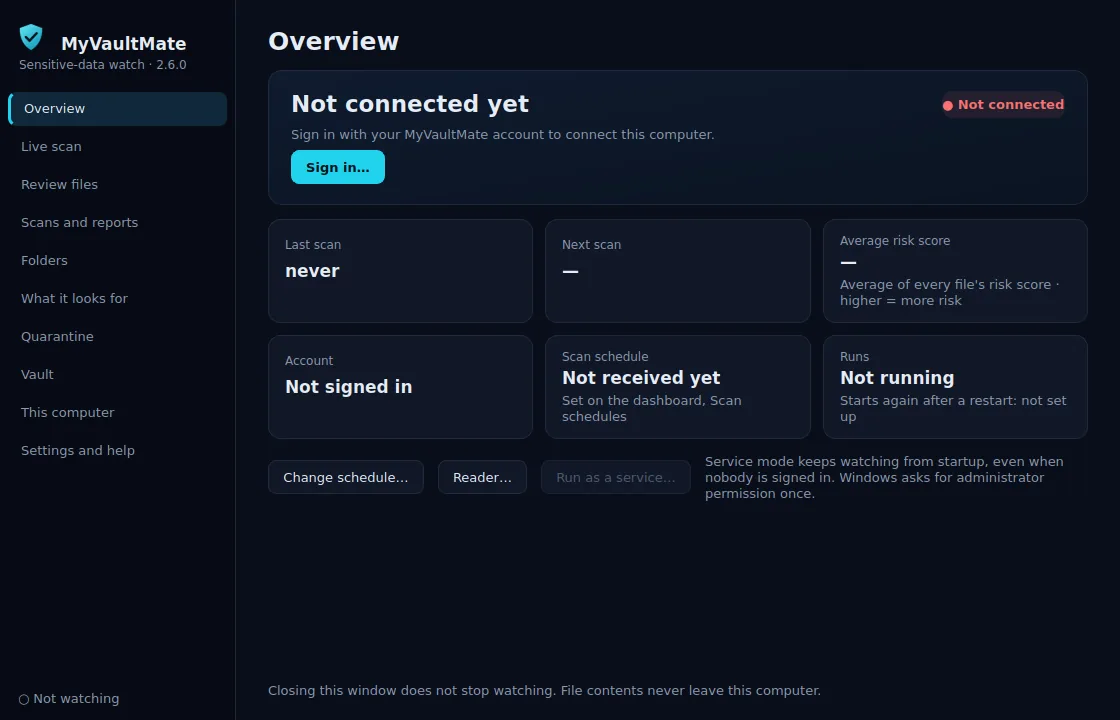
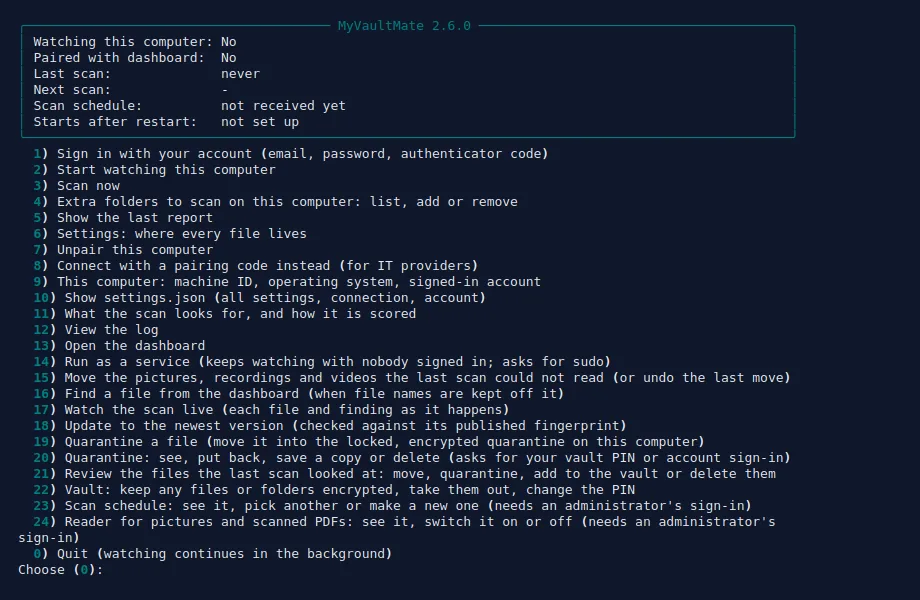
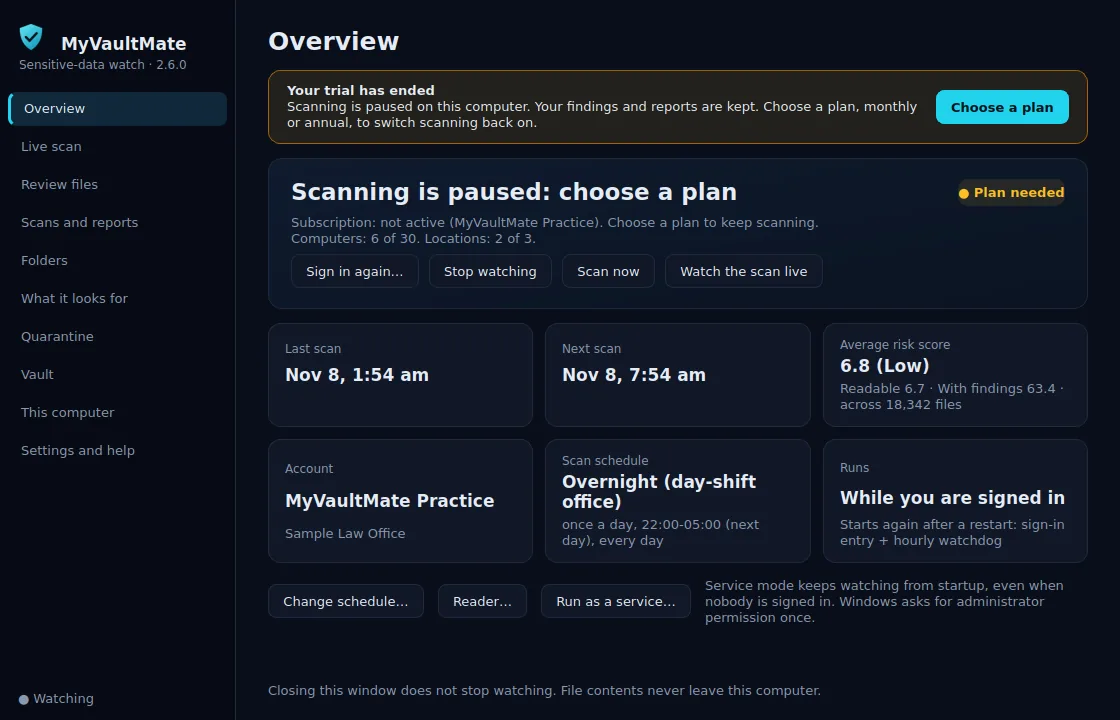
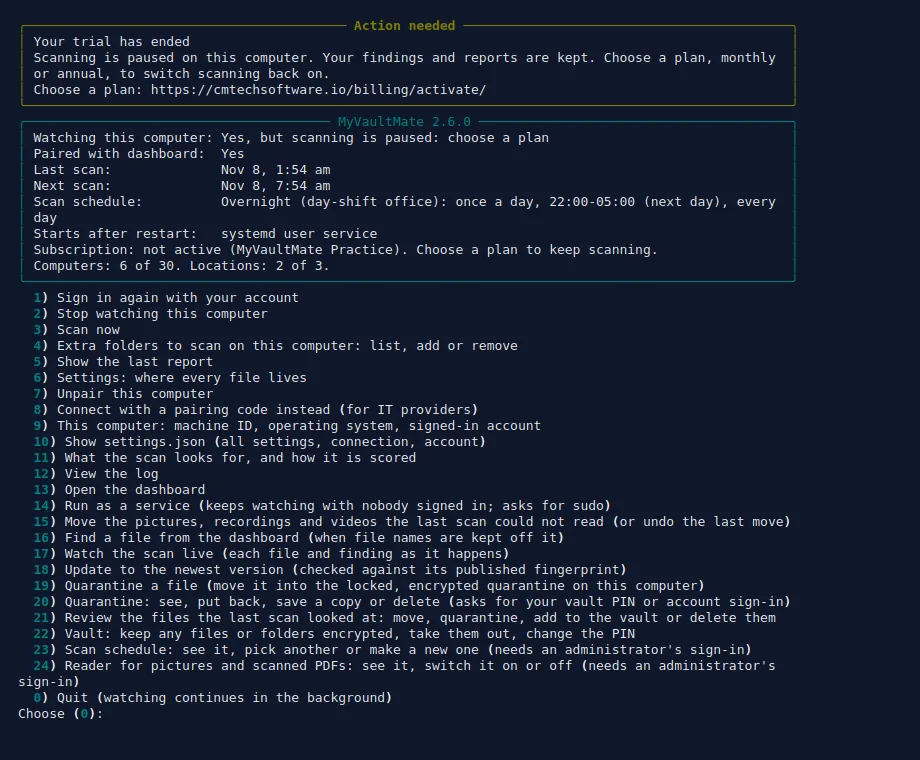
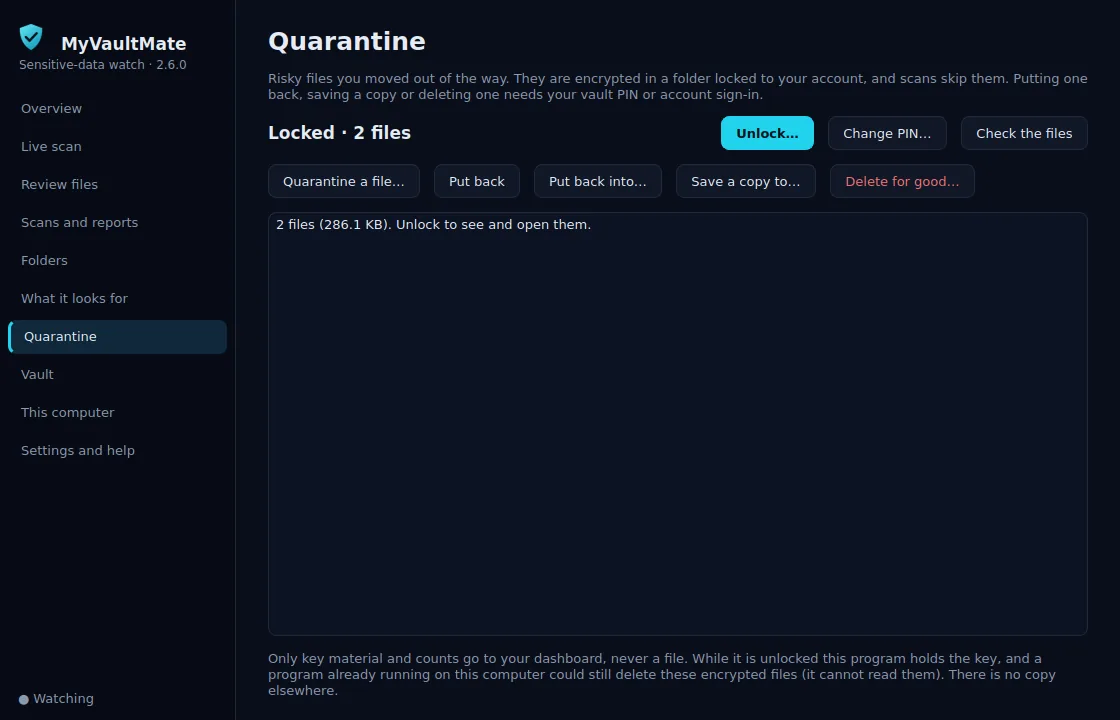
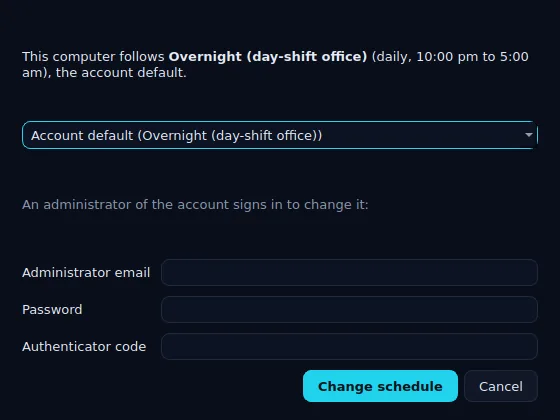
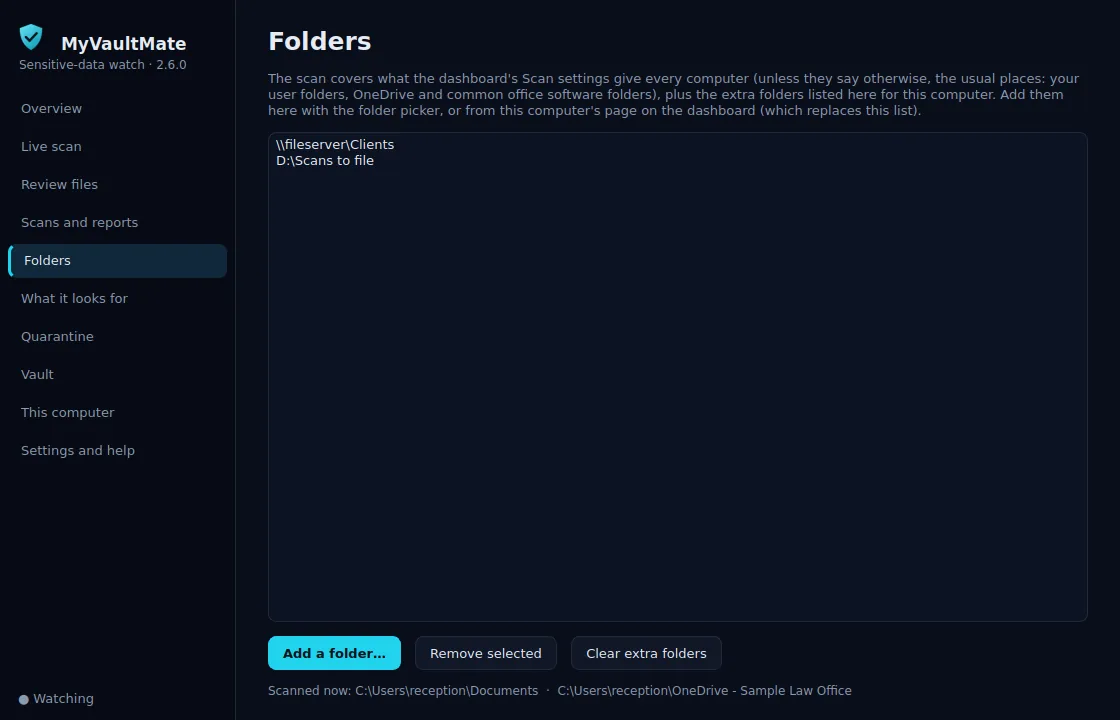
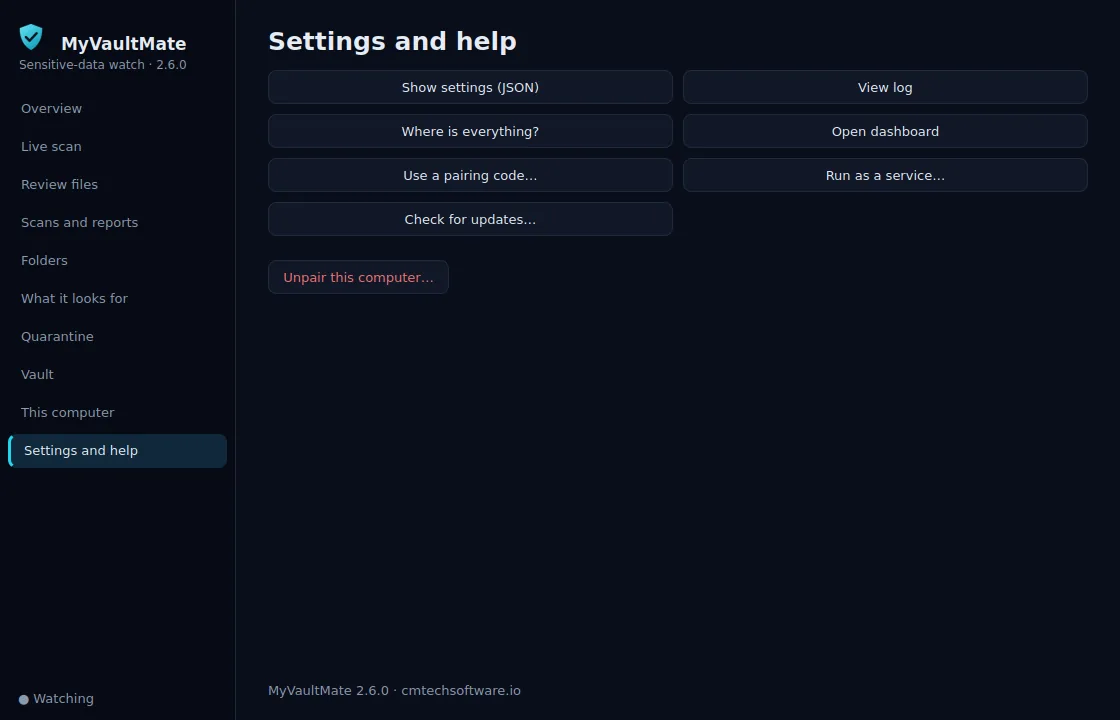
These images are drawn by the program itself, with sample data.
What it reads
- Where: the folders you choose in the dashboard, on the computer’s own, external and mapped drives, including OneDrive and Google Drive folders synced to it.
- Files it reads: Word (.docx and the older .doc), Excel (.xlsx and the older .xls), PDF, text, CSV, JSON, XML and HTML files, and email messages (.eml, and Outlook .msg with the attachments it can read).
- Files it doesn’t read: MyVaultMate reads text files and other files it can open. It does not read pictures, videos or recordings: they’re listed with a risk score of 70, and you choose what to do with them. The same goes for PDFs made by a scanner that are only pictures of the pages, files that are password-protected or damaged, and these types: .7z, .accdb, .db, .mdb, .ods, .odt, .ost, .ppt, .pptx, .pst, .rar, .rtf, .sqlite, .zip. Each one is listed as “Not scanned”, never as clean.
- When: on the schedule you set, as often as hourly, and only in the hours and days you choose (overnight, for example). With incremental mode on, later scans re-read only the files that changed.
- Scan now: press it on a computer in the dashboard (it starts within about a minute), or on the computer itself.
What it looks for
This list comes straight from the program’s rules. Your office can switch checks off, change their severity, or add its own (a client or matter number format, for example) on the What it looks for page. Click a check to see exactly how it is matched.
| What it finds | Severity | Counts toward |
|---|---|---|
Payment card numbers (pattern match)Numbers of 13 to 19 digits (spaces or dashes allowed) that pass the Luhn check, the checksum every real card number satisfies. Random long numbers usually fail it and are ignored. | critical | PII, PCI DSS, GDPR |
Social Security numbers (pattern match)Nine digits written 3-2-4 with dashes (the 000-00-0000 layout), with impossible numbers rejected (area 000, 666, group 00, serial 0000). Taxpayer ID (ITIN) numbers in the same dashed format. Nine digits with or without dashes or spaces when they sit right after a label such as "SSN" or "Social Security number". | critical | PII, HIPAA, GDPR |
Bank account numbers (IBAN) (pattern match)International Bank Account Numbers (two letters for the country, two check digits, then the account, with or without spaces), checked with the IBAN checksum (mod 97) and the length each country uses, so random codes are ignored. | high | PII, GDPR |
Driver's license and national ID numbers (only next to its label)A value of 6-18 letters, digits or dashes (at least four of them digits) right after "driver's license", "DL no.", "DLN" or "national ID". A bare label with no value is not a finding. | high | PII, HIPAA, GDPR |
EU and UK national ID numbers (pattern match)UK National Insurance numbers (AB123456C, with the letter rules HMRC uses), Spanish DNI and NIE numbers (checked with their control letter), Italian codice fiscale (checked with its control character), French social security numbers (NIR, checked with their 2-digit key), and, next to their label, Dutch BSN numbers (eleven test) and German tax ID numbers (Steuer-ID, check digit). | high | PII, GDPR |
GDPR special-category data (keyword signal about the file)Files that record Article 9 data about a person: religion or belief, racial or ethnic origin, political opinions, trade union membership, sexual orientation, or genetic data, written as a field ("Religion:", "Ethnic origin:") or mentioned more than once. A signal about the file, like health information. | high | PII, GDPR |
Health information (keyword signal about the file)A keyword signal about the whole file, not individual records: one strong health term (such as a diagnosis, a prescription, ICD-10 or PHI) or at least two different weaker health terms (such as treatment, symptom or blood type) mentioned three or more times in total. Whole words only. It says the file reads like health information; it does not extract or store anything from it. | high | PII, HIPAA, GDPR |
Health insurance member IDs (only next to its label)A health plan member, subscriber or Medicaid ID: a 6-20 character value with at least five digits right after a label such as "Member ID", "Subscriber ID", "Insurance ID", "Medicaid ID" or "Health plan policy number". Each insurer uses its own format, so a value with no label is not a finding. | high | PII, HIPAA |
Medical record numbers (only next to its label)A medical record or chart number: a 4-20 character value with at least four digits right after a label such as "MRN", "Medical record number" or "Chart #". Every provider numbers its records differently, so a value with no label is not a finding. | high | PII, HIPAA |
Medicare numbers (pattern match)The Medicare Beneficiary Identifier on today's red-white-and-blue card (11 characters such as 1EG4-TE5-MK73, checked position by position against the CMS rules, which never use the letters B, I, L, O, S or Z), and the older Health Insurance Claim Number (a Social Security number followed by a letter code, such as 000-00-0000A). | high | PII, HIPAA |
Passport numbers (only next to its label)A 6-9 character letters-and-digits value (with at least one digit) right after the word "passport". A bare label with no value, such as a blank form field, is not a finding. | high | PII, GDPR |
Dates of birth (only next to its label)A date (such as 01/31/1990) within a few words after a label like "DOB", "date of birth", "birth date" or "born on". A date with no birth label is not a finding. | medium | PII, HIPAA, GDPR |
Email addresses (pattern match)Standard name@domain.tld addresses. | low | PII, GDPR |
IP addresses (pattern match)IPv4 addresses (four numbers from 0 to 255 separated by dots). | low | PII, GDPR |
Phone numbers (pattern match)10-digit North American numbers, with or without +1, parentheses, dashes, dots or spaces. | low | PII, GDPR |
Provider NPI numbers (only next to its label)A 10-digit National Provider Identifier right after a label such as "NPI", checked with the NPI check digit. A provider's NPI is public, but next to health details it marks a claim, referral or medical record, so it is reported at low severity. | low | HIPAA |
Detection is rule-based, so an occasional false alarm happens, and a number that sits apart from its label (a bare passport number, for example) can be missed. A health-information finding means a file reads like a health or insurance record; it does not identify individual records.
How the score works
Every file gets a risk score from 0 to 100. Higher means more risk. Each computer, and the office as a whole, then gets three average risk scores: the total of the files’ scores divided by the number of files.
- All files: every file the scan looked at, including the ones it could not read.
- Readable files: only the files it could read.
- Files with findings: only the readable files where it found something.
Each average is shown with one decimal, the number of files behind it, and a band: Critical 75+, High 50+, Medium 25+, Low 1+, None 0.
Each file’s score
- A file with findings: each finding has a weight set by its severity (critical 16, high 8, medium 4, low 1), changed by where the file sits: ×1.5 in an exposed place (such as the Desktop, Downloads, a USB disk, or a shared, network or cloud-sync folder), ×0.75 inside practice software’s own folders, ×1.25 if the file has not changed in more than 730 days, and ×0.75 if the disk is encrypted. The weights add up and are placed on the 0–100 scale. One Social Security number in Documents scores 80; on the Desktop, 91.
score = round( 100 × ( 1 − e^( −total weight ÷ 10 ) ) )
- A readable file with nothing found: a small score from 1 to 10 for where it sits (5 in an ordinary folder, higher in an exposed one, lower on an encrypted disk), because any file can still be lost or shared.
- A file it can’t read: MyVaultMate reads text files and other files it can open. It does not read pictures, videos or recordings: they’re listed with a risk score of 70, and you choose what to do with them. Marking one as ignored keeps its 70.
- A finding you mark as false drops out; a file whose findings are all false counts as a file with nothing found.
A worked example
A computer has 20 readable files and 5 pictures. 18 files have nothing in them (score 5 each), one spreadsheet in Documents holds a Social Security number (80) and one on the Desktop holds another (91).
| Average | Total of the scores | Files | Score |
|---|---|---|---|
| All files | 90 + 80 + 91 + 350 = 611 | 25 | 24.4 (Low) |
| Readable files | 90 + 80 + 91 = 261 | 20 | 13.1 (Low) |
| Files with findings | 80 + 91 = 171 | 2 | 85.5 (Critical) |
Moving the Desktop spreadsheet into Documents, or deleting it, lowers every average. Dealing with the pictures lowers the all-files average.
- A computer is scored from its latest scan, and the office from every computer’s latest scan, added up the same way.
- A scan from a program older than 2.6.0 shows “rescan to see this score” for the first two averages until the computer scans again with 2.6.0.
- There is also a score for each of PII, PHI, HIPAA, GDPR, PCI, counting only the findings that relate to it.
The scores show what to fix first and whether things are getting better. They are not a certification or a legal finding, and MyVaultMate does not see who has access to a file.
What leaves your computer
- Sent to your dashboard: for each finding, the file’s location and type, the kind of data, the severity and a short masked sample such as
***-**-1234. Each scan also sends the computer’s name, machine ID, operating system and signed-in account, and its own report of the scan, from which the dashboard builds the PDF report and CSV (one row per file, with size, date and a fingerprint that can’t be turned back into the contents). The newest 25 scans per computer are kept, and each scan’s counts (no file details) for 13 months, for trend reports. While a scan runs, the computer also sends a short progress report every few seconds (counts, the folder it is in, and the newest masked findings), so you can watch it on the dashboard. - If file names are sensitive: switch on Keep file names off the dashboard in Scan settings. Each computer swaps file and folder names for tags before anything is sent, and the program on that computer can still find the real file for you.
- Quarantine and Vault: your dashboard keeps one key per vault and hands it to the program only after checking your vault PIN or account sign-in, plus counts (how many files are in each, how many were moved or deleted). The files, their names and the keys that encrypt them stay on the computer.
- Never sent: the files themselves, the full values, or anything from inside a file beyond the masked sample and the label next to it (such as “DOB”).
- How it is kept: encrypted in transit (the program only talks to the dashboard over HTTPS, TLS 1.2 or newer, and checks the server’s certificate) and stored on US-based hosting (Hostinger), with the database and backups encrypted. You can delete a computer’s findings at any time. More on Security.
- Who can see it: you and the people you invite. CM Tech staff access is limited by role and logged.
Print this section (one-page PDF) for your office manager or IT person.
Common questions
- Will it slow down our computers?
- It idles between scans. During a scan it runs at a balanced speed: full speed while the computer is idle, fewer files at once while someone is using it or other programs are busy, and always at lower priority than the programs people are using.
- Will our antivirus block it?
- Because the Windows file isn’t code-signed yet, some antivirus tools may warn the first time. Call us and we’ll walk through it.
- Do you fix the problems it finds?
- It shows you where the exposure is and leaves the decisions to you; it never deletes a file unless someone chooses to. At the computer, the program’s Review files page lists what each scan looked at, folder by folder, so you can move files, delete them for good, put them in its encrypted Quarantine or Vault, or mark a file it couldn’t read as ignored. From a computer’s page on the dashboard, an administrator can ask it to quarantine, move or delete for good (typing DELETE first) files its own recent scans found, and Scan settings can quarantine, move or ignore the files it couldn’t read after every scan. Opening the quarantine or vault needs your vault PIN or account sign-in, at the computer.
- Does the vault stop ransomware?
- It stops anyone from reading the files without your PIN or sign-in, including a program running on the computer. It cannot stop a program from deleting or scrambling the encrypted files, and it keeps no copy anywhere else, so keep your normal backups.
- How do the computers get new versions?
- Someone chooses Update now in the program, or an administrator updates one computer, or all that are behind, from the dashboard. The program finishes any running scan, checks the new version’s fingerprint and restarts; if anything fails it keeps the version it had. Windows and Linux have the same features: a window on Windows, a terminal menu and command-line flags on Linux.
- Does our IT company need to be involved?
- Not for setup. Many offices give their IT provider a dashboard login to work through the findings.
Still have a question? Call (775) 229-2579 and ask the person who wrote it.